 listicle
7 Tools to Process Audio Locally in Browser (2026)
Table of Contents
- Quick Comparison: 7 Tools to Process Audio Locally in Browser
- How We Evaluated These Browser-Based Audio Tools
- 1. Finalizer: One-Click Speech Processing With Wasm and Web Audio API
- 2. AudioCut: Zero-Friction Waveform Editing in Your Browser
- 3. Audacity: The Open-Source Desktop Powerhouse for Local Audio
- 4. Chrome Audio Capture: Record Tab Audio Without Leaving the Browser
- 5. Screencastify: Local Voice and Screen Recording for Creators
- 6. Notta: Browser Recording With Cloud Transcription Trade-Offs
- 7. Veed: All-in-One Browser Editing With AI Audio Cleanup
- Frequently Asked Questions
Last Updated: September 18, 2026
Quick Comparison: 7 Tools to Process Audio Locally in Browser
The fastest way to process audio locally in browser is a client-side tool that runs entirely on your own machine. That matters because upload-based editors force you to wait on servers and hand your raw recordings to someone else's infrastructure.
This guide from Finalizer covers seven tools that keep the work on your device. We grouped them by what they actually do well, not by marketing claims.
Quick Picks:
- Best for one-click speech cleanup: Finalizer, free tier, no account required
- Best for quick waveform trims: AudioCut
- Best for complex multitrack projects: Audacity
- Best for capturing tab audio: Chrome Audio Capture
Below, we'll show you exactly how each tool handles local processing, where it falls short, and which one fits your workflow. For creators handling sensitive interviews or unreleased material, local processing is not a nice-to-have. It is the whole point.
| Tool | Runs Locally | Free Tier | Best For | Standout Feature |
|---|---|---|---|---|
| Finalizer | Yes, 100% client-side | Yes, no signup | Spoken-word cleanup | Wasm speech engine |
| AudioCut | Yes | Yes | Fast trims | Waveform editing |
| Audacity | Yes, desktop app | Yes | Multitrack projects | Plugin library |
| Chrome Audio Capture | Yes | Yes | Tab audio | One-click capture |
| Screencastify | Yes | Yes | Voiceovers | Screen plus mic |
| Notta | Partial | Yes | Transcription | Speaker ID |
How We Evaluated These Browser-Based Audio Tools
We scored each tool on four things: whether processing happens on your device, how fast it handles a typical file, how steep the learning curve is, and what it costs to get real work done. But "runs locally" is a claim any tool can make, so we verified it against the actual browser mechanisms that make local processing possible.
A common mistake is assuming "browser-based" means "cloud-based." They are not the same. The MDN Web Audio API documentation explains how a browser can generate, filter, and analyze audio entirely on the client using audio nodes, which is what makes true local processing possible.
- Web Audio API graph. Does the tool build an
AudioContextand route samples throughGainNode,BiquadFilterNode,DynamicsCompressorNode, andConvolverNodeobjects? If yes, the signal path never leaves the tab. - OfflineAudioContext for exports. Rendering a final file faster than real time requires
OfflineAudioContext, which processes a buffer without tying up the main thread. Tools that lack it force you to wait in real time. - AudioWorklet vs. ScriptProcessorNode. The deprecated
ScriptProcessorNoderuns on the main thread and stutters under load. Modern tools useAudioWorklet, which runs on a dedicated audio rendering thread (AudioWorkletProcessor - Web APIs). - Web Workers for heavy lifting. Denoising, pitch detection, and silence analysis are CPU-bound. If they run on the main thread, the UI freezes. Tools that offload them to a
Workerstay responsive. - WebAssembly (WASM) for DSP. When a task needs C/C++-level speed, like a neural speech enhancer, WASM lets that code run near-native inside the browser sandbox. This is the single biggest performance differentiator between a toy and a production tool.
- Network inspection. We open DevTools, watch the Network tab during a full process-and-export cycle, and confirm no audio payload is uploaded. A tool can say it is local; the request log does not lie.
The tools below split into three groups: speech polishers, editors, and recorders. Pick the group that matches your job before you compare features. We also flagged which ones keep working after you disconnect from the internet, because a true client-side engine that caches its assets can run offline, a capability most roundups ignore entirely.
1. Finalizer: One-Click Speech Processing With Wasm and Web Audio API
Finalizer is our top pick for spoken-word audio because it does the processing work inside your browser using WebAssembly and the Web Audio API. Nothing gets uploaded.
Three things stand out in practice:
- No signup wall. The free tier lets you drag, drop, and process immediately.
- Privacy by architecture. Sensitive interviews and unreleased audiobooks never leave your machine.
- No upload queue. Local execution skips server waits entirely, so processing starts the moment you drop the file.
2. AudioCut: Zero-Friction Waveform Editing in Your Browser
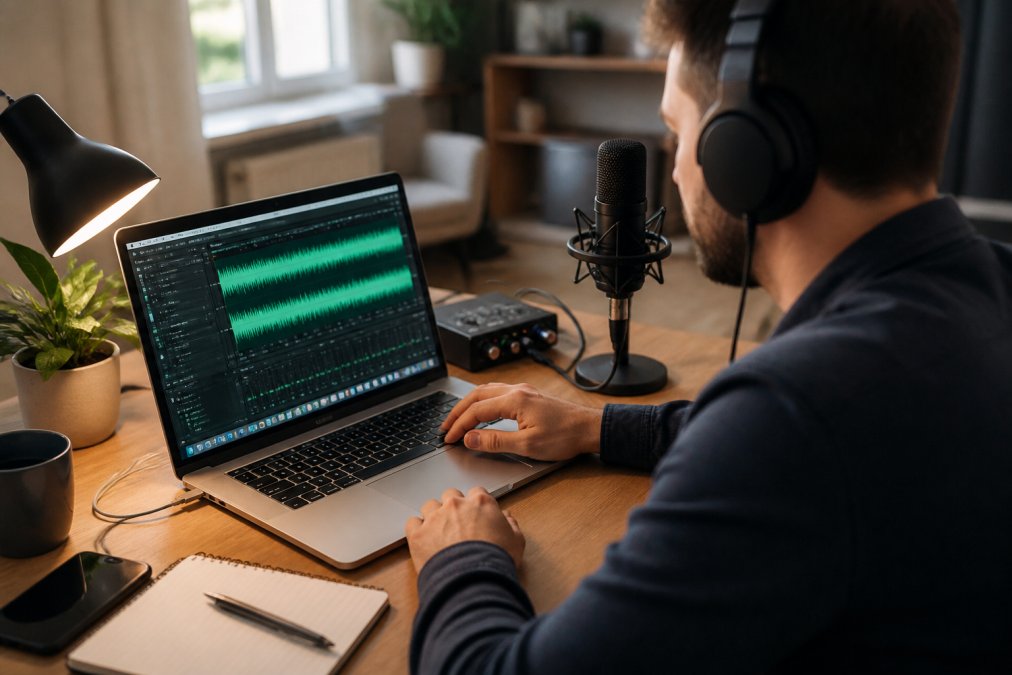
AudioCut is the tool to reach for when you need a fast trim and nothing else. It opens a waveform in the browser, processes the file locally, and never asks you to upload anything.
3. Audacity: The Open-Source Desktop Powerhouse for Local Audio
Audacity is the free, open-source multitrack editor that has been the default local audio workstation for years. It runs on your machine, not in a browser tab, and it handles WAV, AIFF, and MP3 files without complaint.
The offline-first angle most guides miss
Here is where Audacity quietly beats every browser tool on this list: it works with zero internet connection, forever, with no cached assets to expire and no model to re-download. A browser tool that fetches a WASM speech model on each session cannot make that promise. If you regularly edit on a plane, in a field recording setup, or on a locked-down network, that reliability is not a minor feature, it is the deciding one.
4. Chrome Audio Capture: Record Tab Audio Without Leaving the Browser
Chrome Audio Capture is a browser extension that records audio playing in a single tab and saves it as MP3 or WAV. Everything happens inside the browser, and the file downloads straight to your machine.
5. Screencastify: Local Voice and Screen Recording for Creators
Screencastify records your screen and your microphone together, with the capture processed locally in the browser. It includes basic trimming, so you can cut the dead space off the front and back of a take without opening another app.
6. Notta: Browser Recording With Cloud Transcription Trade-Offs
Notta records audio in the browser and transcribes it automatically, with speaker identification built in. For journalists and meeting-heavy teams, that combination covers a lot of ground in one place.
7. Veed: All-in-One Browser Editing With AI Audio Cleanup
Veed bundles video and audio editing in one browser workspace, with AI-powered background noise removal and automatic subtitle generation. For social-first creators, having cleanup and captions in the same timeline removes a step.
Frequently Asked Questions
Is it possible to process audio entirely within a web browser?
Yes. Modern browsers support the Web Audio API and WebAssembly, which let tools run audio processing on your own device. Finalizer, AudioCut, and Chrome Audio Capture all handle tasks like noise reduction, trimming, and format conversion without sending files to a server. The main limits are your device's CPU and available memory, so very long recordings may process slower on older hardware.
What are the benefits of local audio processing over cloud-based tools?
Local processing keeps files on your machine, so sensitive interviews or unreleased content never leave your device. It also skips upload and download waits, which matters when you are working with large WAV files. Cloud tools can offer more advanced features, but they add transfer time and raise privacy questions. For a quick first-pass cleanup, local tools are often faster and safer.
Does browser-based audio processing require an internet connection?
Not always. Once a browser-based tool is loaded, many local processors continue working offline because the computation happens on your device. Finalizer and AudioCut, for example, run their engines client-side. You will need a connection to load the page initially, but after that, you can often keep editing without one. Cloud-dependent tools like Notta's transcription features do require an active connection.
Are there privacy risks when using cloud-based audio editors?
Cloud editors require uploading your files to remote servers, which creates a chain of custody you cannot fully control. If the recording contains confidential interviews, legal discussions, or unreleased creative work, that upload is a risk. Local tools avoid this by processing on your device. For sensitive material, choose a tool that clearly states it processes audio locally in the browser.
How does the Web Audio API enable local audio processing?
The Web Audio API gives browsers a built-in signal-processing graph. You connect audio nodes for gain, filtering, and analysis, and the browser runs the math on your CPU. Combined with WebAssembly, tools like Finalizer can handle advanced tasks such as de-essing, peak limiting, and de-noising at near-native speed. This is what makes real-time, client-side audio editing possible without plugins or installs.
The hard part of audio cleanup is not the editing itself. It is finding a tool that keeps your recordings private while still doing professional-grade work in a single pass. Finalizer handles that with a client-side WebAssembly engine, one-click de-noising and de-rooming, a smart Silence Shortener for spoken content, and a free tier that needs no registration. Get started with Finalizer and turn a raw take into broadcast-ready audio without ever uploading your file.